
How to View your Sent Faxes
Now that you're logged in to your user portal you are able to view sent faxes in a few easy steps.
From the dashboard do the following:
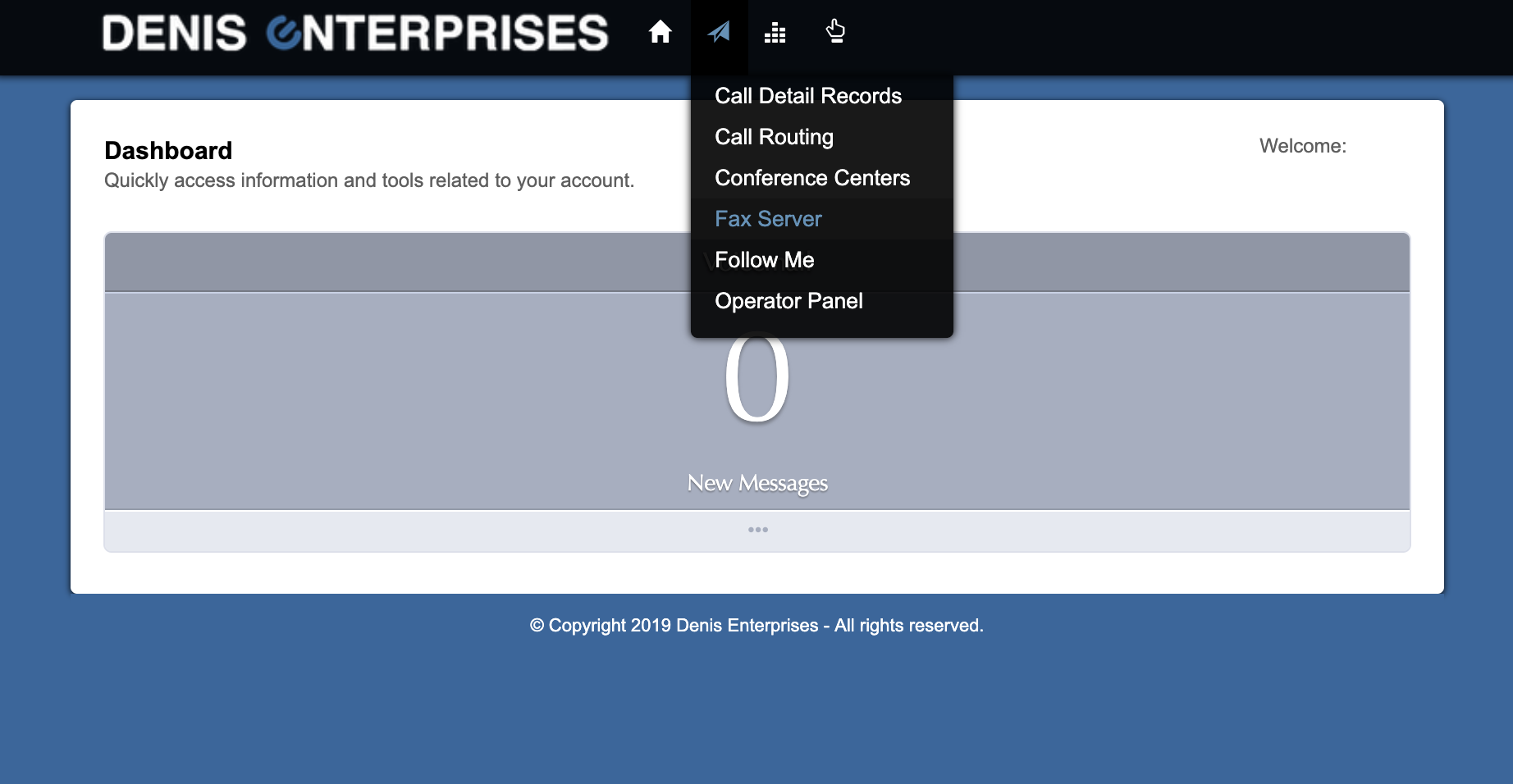
- Click 'Applications' (paper airplane icon) at the top of the screen
- Select 'Fax Server'
- If your extension is provisioned to send faxes, you'll see it listed on the 'Fax Servers' screen
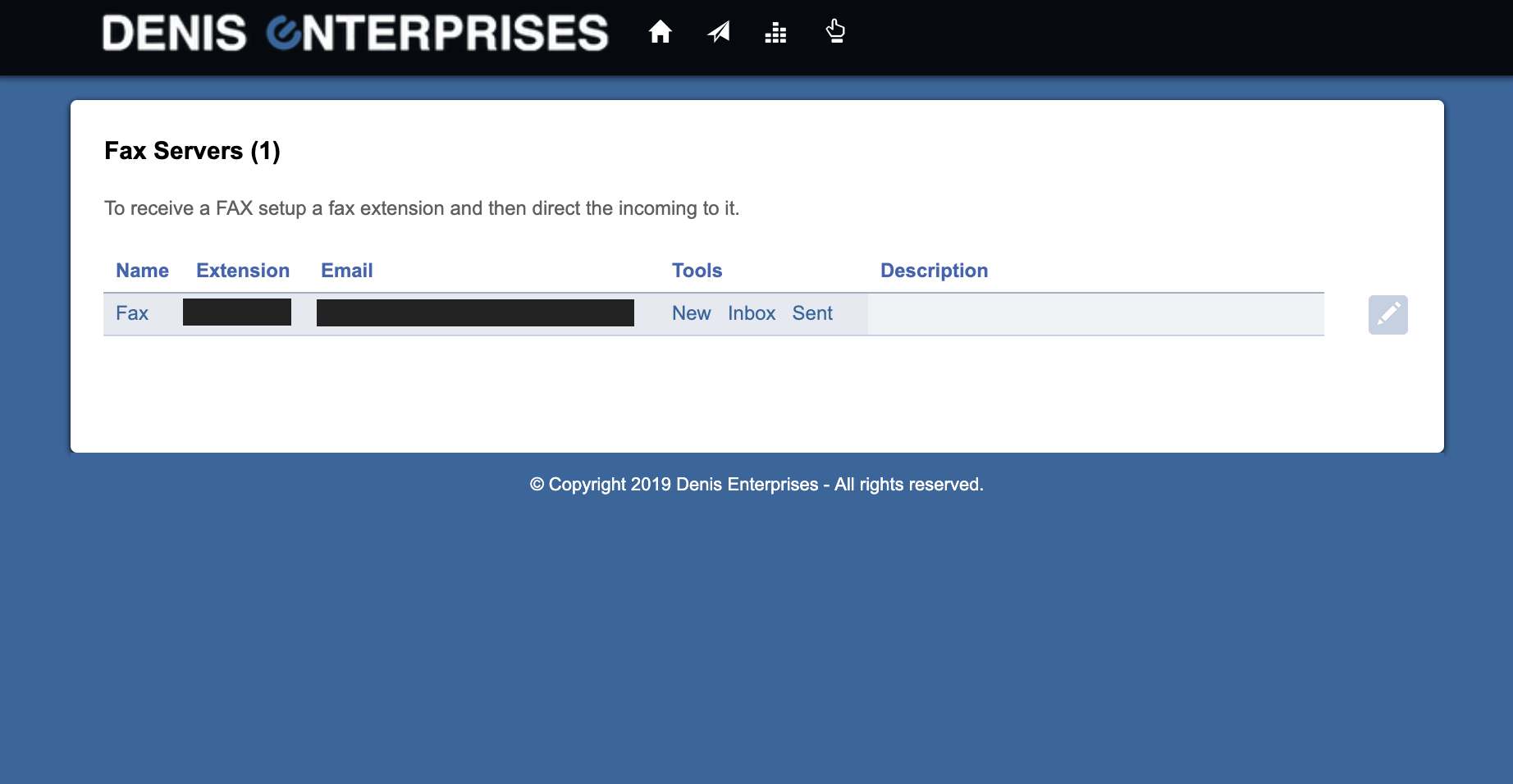
If you do not see your extension listed under 'Extension' please contact DEVoIP Support. - Under 'Tools' click 'Sent'
- Faxes sent using your extension will show on this screen

- From this screen you can view or download a copy of the fax as well as review the number the fax was sent to and the information you entered as your Caller ID Name and Number.
Note: Faxes will only appear on this screen if they are sent successfully and after the success of the fax is confirmed by the system so they may take a few minutes to appear once a fax has been sent.
0 Comments