
How to Send a Fax
Now that you're logged in to your user portal you are able to upload and send faxes in a few easy steps.
From the dashboard do the following:
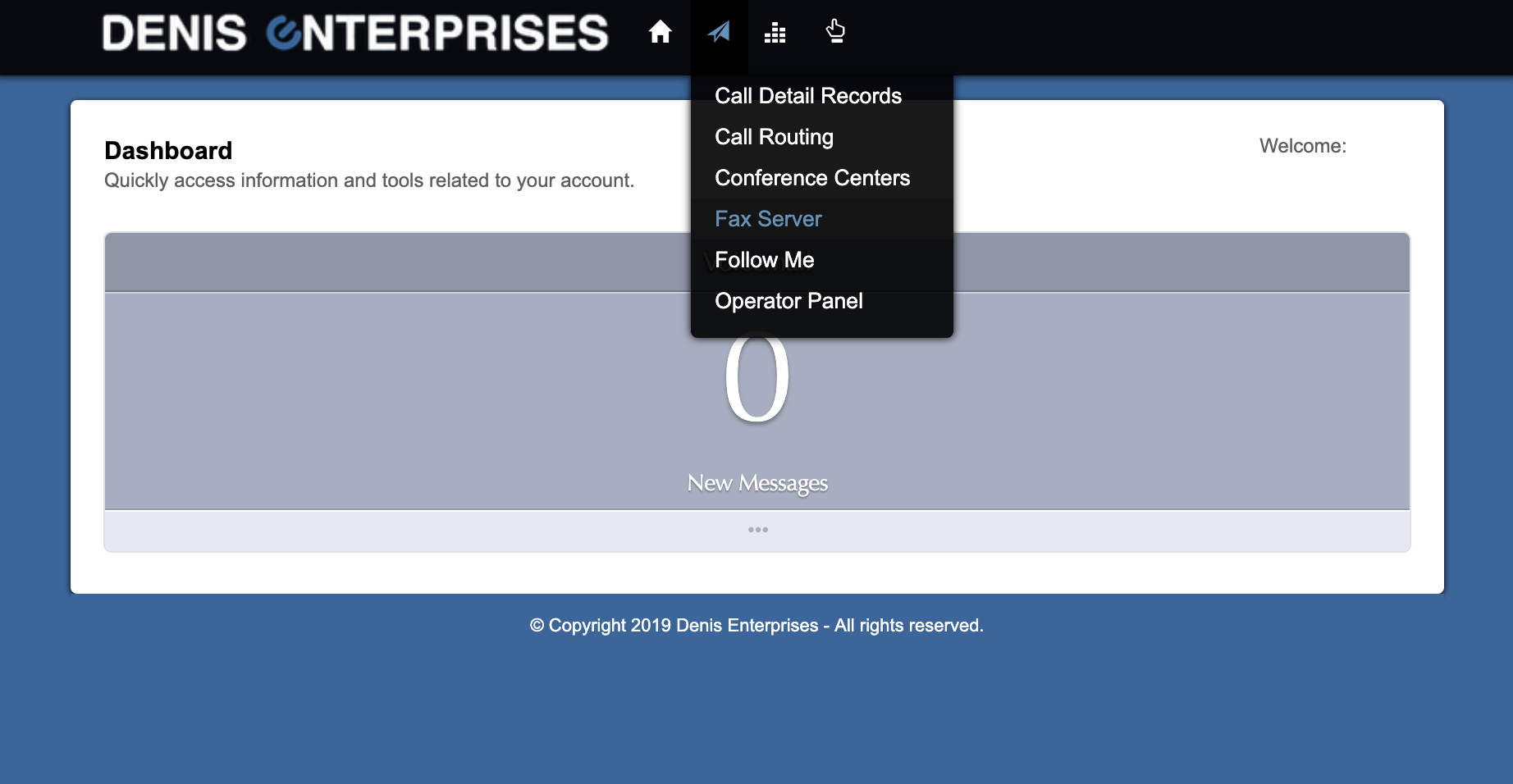
- Click 'Applications' (paper airplane icon) at the top of the screen
- Select 'Fax Server'
- If your extension is provisioned to send faxes, you'll see it listed on the 'Fax Servers' screen
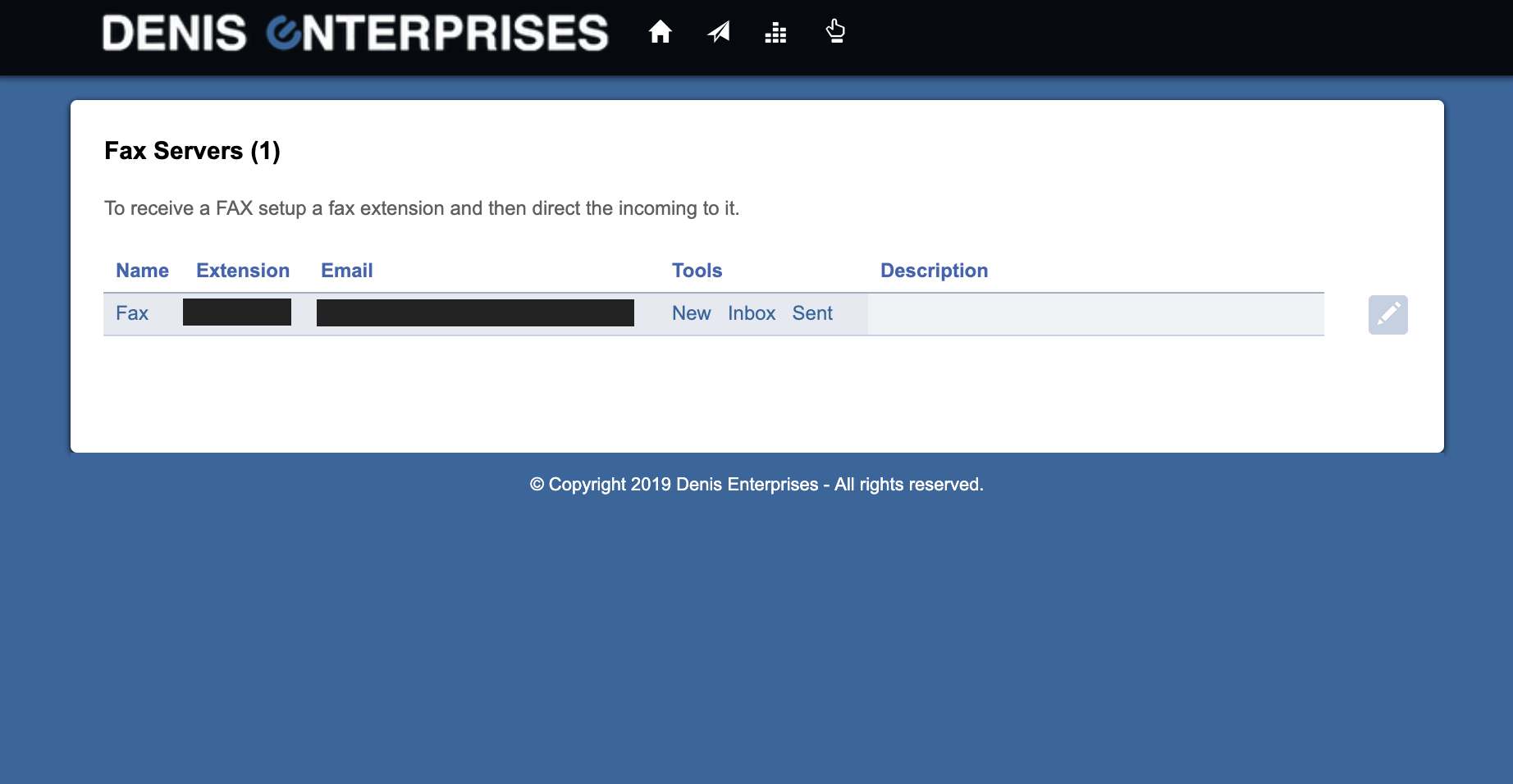
If you do not see your extension listed under 'Extension' please contact DEVoIP Support. - Under 'Tools' click 'New'
- Enter the full 10-digit 'Fax Number' without spaces or dashes. For example: 2095851370
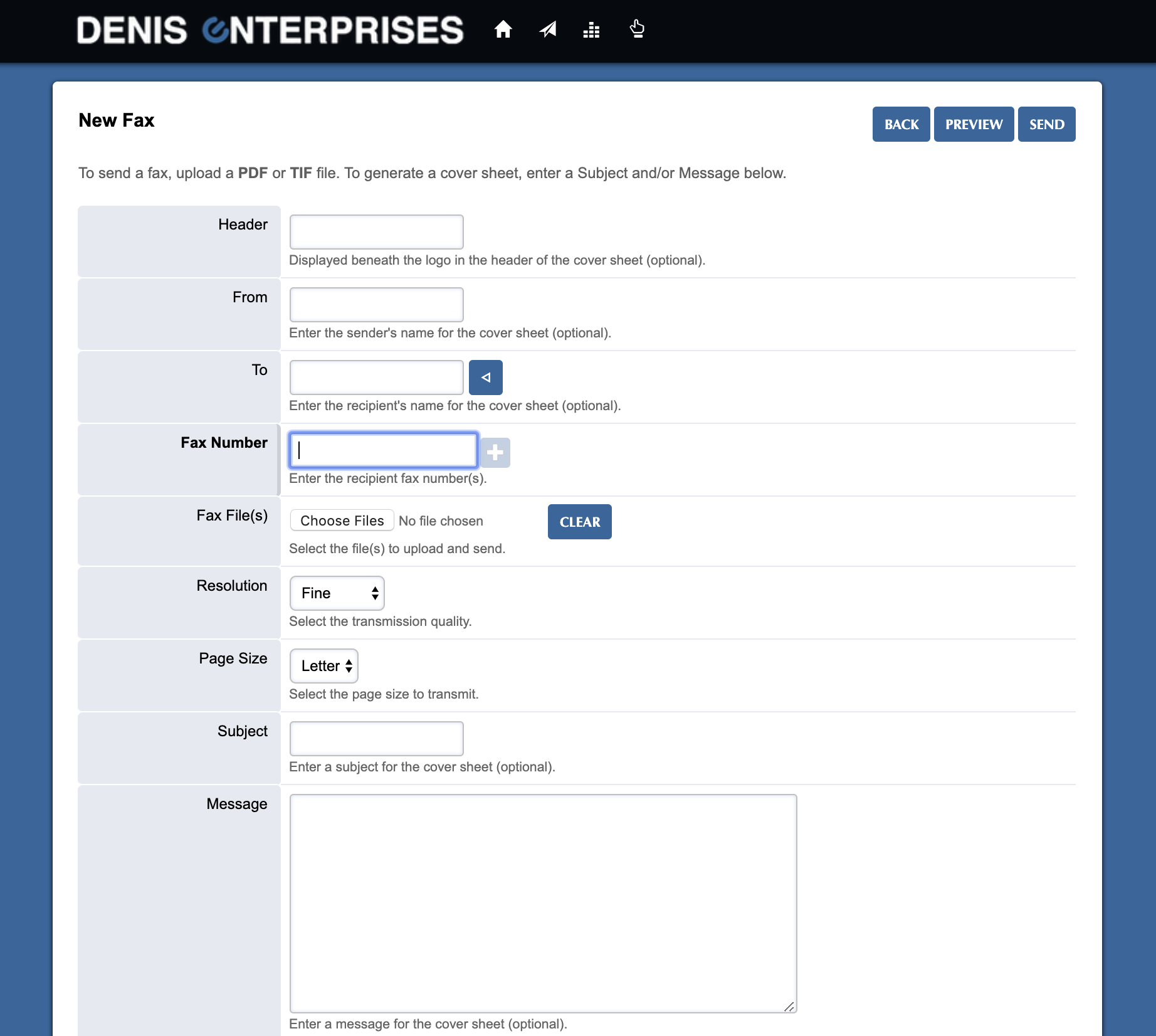
- Then click the 'Choose Files' button to upload your fax document
NOTE: This must be a PDF or TIFF file or your fax will Fail to send. - If you have multiple files to fax repeat step 6 until all files have been uploaded successfully
- If you wish to include a subject or personal message do so below along with any other changes to the options provided on this screen
- You may then download a preview of your fax by clicking 'Preview'
- or - - Click 'Send' to send your fax now
0 Comments