
This procedure is applicable for iOS devices (iPhone, iPad, etc.) running iOS 11 and higher. The screenshots shown below were taken from an iPhone 7 running iOS 11.0.1. Other devices will be similar.
If you have iOS 11 and experience issues with email connectivity please update to the latest version of iOS 11.
Apple has acknowledged an issue with the Mail app and email connectivity effecting Exchange in the following article:https://support.apple.com/en-us/HT208136
Prior to starting this procedure, obtain your account-specific information by emailing support@denisenterprises.com
To setup an Exchange email account on an iPhone or iPad take the following steps:
1. From the Home screen tap Settings.
2. Scroll down and tap Accounts & Passwords.
3. Tap Add Account.
4. Tap Exchange.
5. Type in the Email address and account
description (optional) then tap Next.
Note: The description labels the account on the device and is not
visible to anyone else.
6. Tap Configure Manually on the prompt that appears:
7. Please use the information sent to you by the Support team at Denis Enterprises.
If you do not have the information below please contact us and we'll provide it to you.
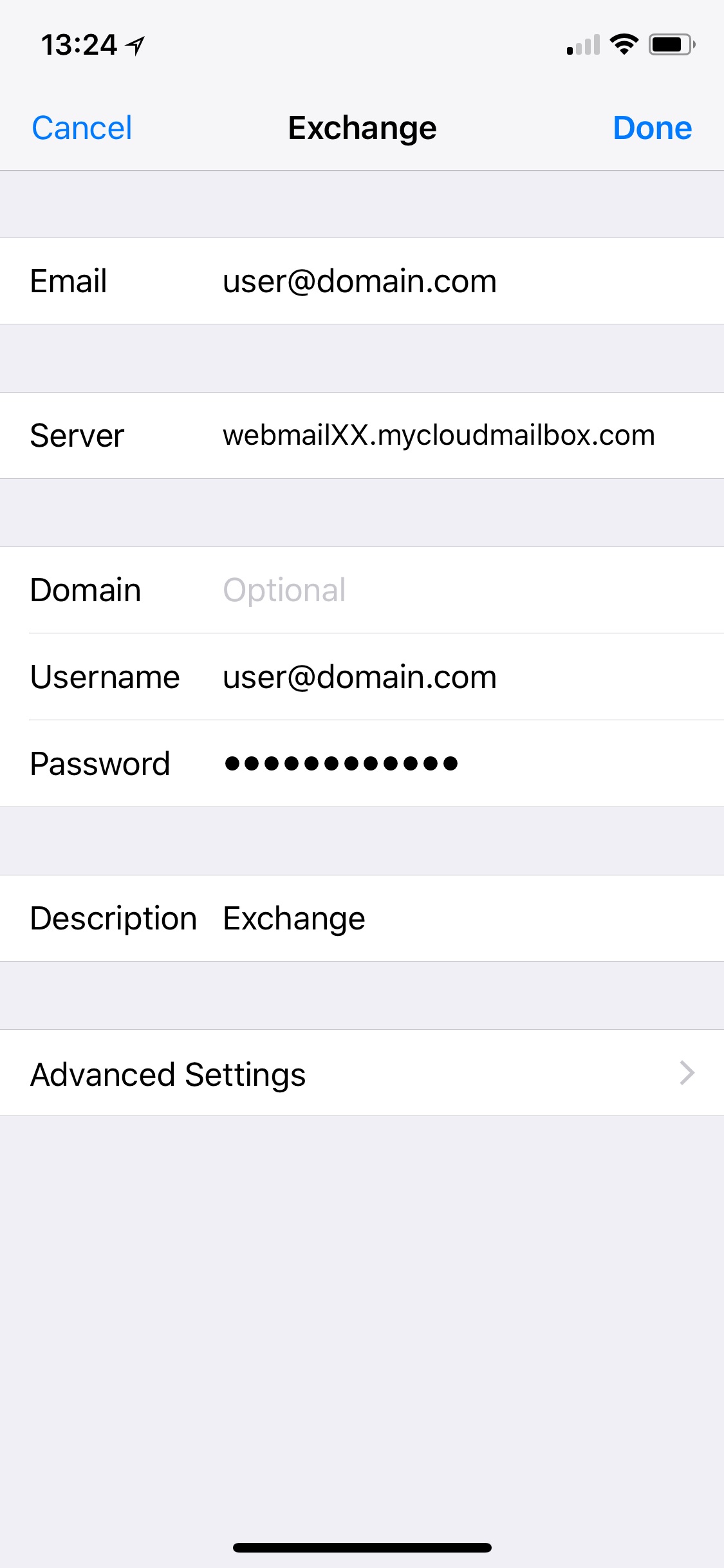
8. Choose the Exchange services to synchronize. If prompted, tap Keep on My iPhone.
Note that other types of iOS devices will display similar confirmation notices.
If data is stored in the device's local address book or calendar these options are turned off by default. Synchronization of these services can be enabled, but a pop-up will appear prompting whether to keep or delete the local data. Unless you are sure you don't need this information, the Keep on My iPhone option should be chosen.
9. Tap Save.
10. The account is now added! Email should appear in the Mail app within a few minutes. Please allow some time for all synchronized data to download.
Still stuck? Open a new Request at the top right of this page or email support@denisenterprises.com to open a new request via email.
0 Comments